

Statuses
Learn about each inspection status, its ID, transition rules, and how inspections move through their lifecycle from creation to completion.
Every inspection moves through a series of statuses from creation to completion. This page covers each status, its API identifier, transition rules, and the overall lifecycle flow.
Status Flow
The typical lifecycle is linear, but inspections can also be canceled at certain stages or move backward when more information is requested.
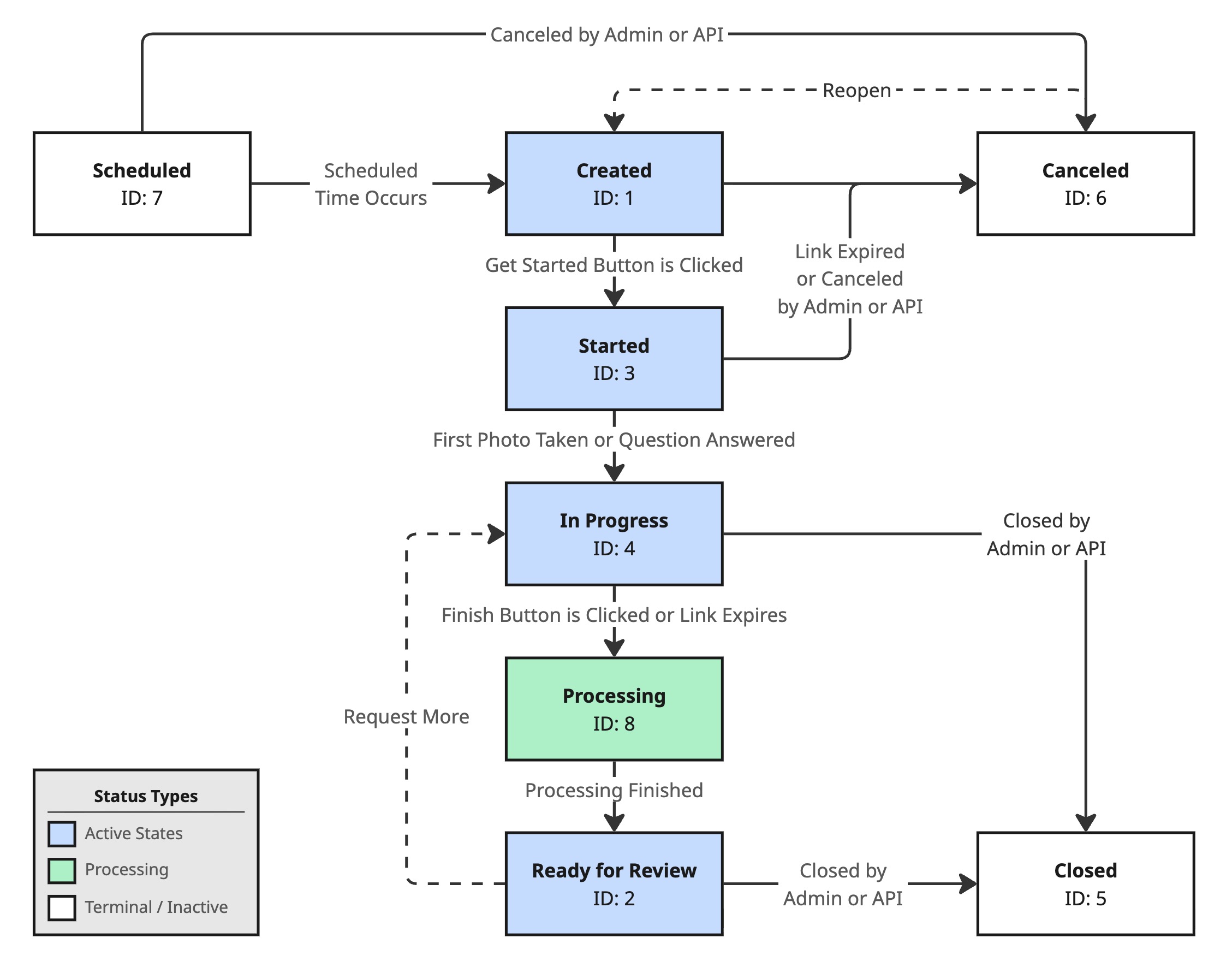
Statuses
| Status | inspection_status_id | Description | Possible Transitions |
|---|---|---|---|
| Scheduled | 7 | The inspection has been created with a future send date. It transitions to Created when the scheduled time arrives and the request is delivered to the customer. Not all inspections use scheduling — you can create an inspection for immediate delivery. | • Scheduled → Created • Scheduled → Canceled |
| Created | 1 | The inspection request has been sent to the customer via text, email, or both. The customer has not yet clicked Get Started in the app. | • Created → Started • Created → Canceled |
| Started | 3 | The customer has clicked Get Started in the app. They have not yet captured any photos, recorded any video, or answered any questions. | • Started → In Progress • Started → Canceled |
| In Progress | 4 | The customer has captured at least one photo, recorded a video, or answered a question. In Progress inspections cannot be canceled. | • In Progress → Processing • In Progress → Closed |
| Processing | 8 | The customer has submitted the inspection for review or the inspection expired with at least one image captured or one question answered. Truepic will now analyze and process the results before marking the inspection as Ready for Review. | • Processing → Ready for Review |
| Ready for Review | 2 | Processing is complete. It is now waiting for a member of your team to review the results, test outcomes, and captured media. | • Ready for Review → In Progress • Ready for Review → Closed |
| Closed | 5 | A reviewer has completed their assessment and closed the inspection, optionally assigning an outcome (such as "Approved" or "Rejected"). This is a terminal status. | |
| Canceled | 6 | The inspection was canceled before the customer began capturing. This happens when an administrator or API call explicitly cancels the inspection, or when the inspection expires because the customer never started in time. | • Canceled → Created |
Key Lifecycle Rules
- Inspections can be scheduled for future delivery or created immediately — both paths lead to the Created status.
- An inspection moves to Started when the customer clicks Get Started in the app, not when they open the inspection link. It moves to In Progress once they capture a photo, record a video, or answer a question.
- Only inspections in the Created or Started status can be canceled. Once a customer begins capturing (In Progress), the inspection cannot be canceled.
- If a customer doesn't finish in time, the inspection expires. If they had begun capturing, it transitions to Ready for Review; otherwise it transitions to Canceled.
- A Ready for Review inspection can be moved back to In Progress when you request more photos, videos, or answers from the customer.
- A canceled inspection can be reopened by transitioning it back to Created.
- An inspection must reach Ready for Review before it can be Closed.
Updating Status via the API
Updating Status via the API
Change an inspection's status by sending a PUT request to /inspections/{inspectionId}
with the new inspection_status_id value. See Update Inspection
for details.
Only three statuses can be set this way:
5(Closed) — from In Progress, Processing, or Ready for Review. If the
inspection type has an outcome set configured,outcome_idmust be included in
the same request.6(Canceled) — from Created, Started, or Scheduled.1(Created) — reopens a canceled inspection.
All other statuses are managed by Truepic. In particular, 3 (Started), 4 (In
Progress), 8 (Processing), and 2 (Ready for Review) are driven by app-user
activity and the processing pipeline, and cannot be set through this endpoint.
Related Pages
Understand how inspections are composed from teams, lists, templates, and alerts.
Change inspection status and update customer information via the API.
Request additional photos or videos on an existing inspection.
Define and assign outcomes when closing inspections.
Updated about 1 month ago