

Alerts
Learn how Vision inspection alerts work, how thresholds are applied, and how to interpret alert config, warnings, failures, and recommendations.
Use inspection alerts to route inspections for approval, manual review, or rejection based on verification results and device risk signals.
Configure an alert
- Open Settings > Alerts in the Vision Dashboard.
- Enable the tests and signals that should contribute to the alert.
- Set
warn_thresholdandfail_thresholdfor the inspection type. - Assign the alert to the inspection type you want to evaluate.
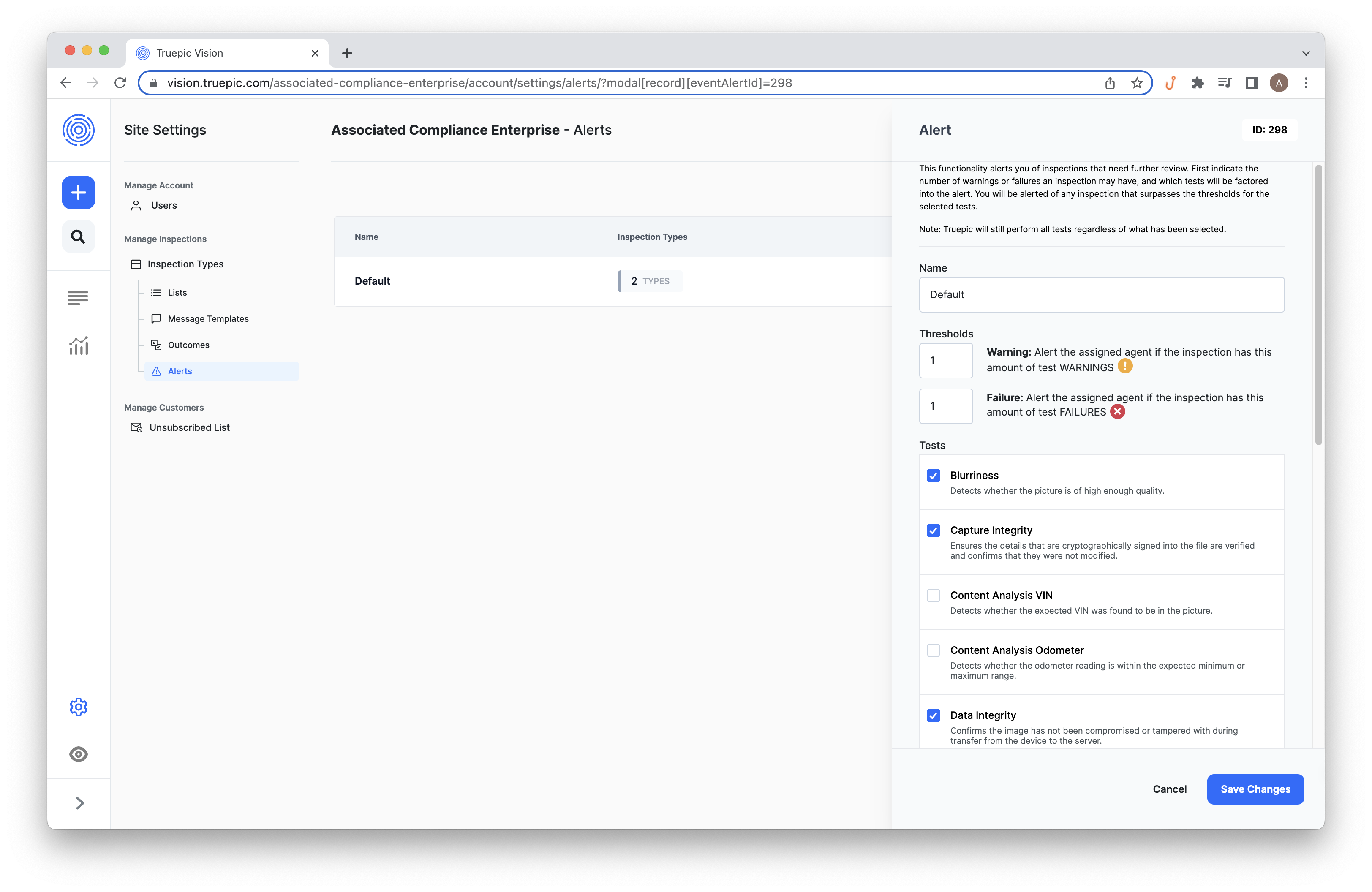
Vision Dashboard. Example of configuring an inspection alert.
Once an alert is assigned to an inspection type, each new inspection of that type includes an alert object in the inspection response. You can read that data from webhook notifications or by calling GET /v3/inspections/{inspectionId}.
Use the alert data to route inspections in your workflow. For example, you might auto-approve clean inspections, queue warning cases for manual review, and reject inspections that cross your failure threshold.
To understand what each verification test checks and how to interpret pass, warn, and fail, see Verification Tests. For device- and location-risk signals such as flagged devices or falsified locations, see Risk Network.
Understand the alert object
The alert object contains the configuration applied to the inspection, the specific warning and failure matches, and the overall recommendation.
| Field | What it tells you |
|---|---|
config | Which tests and signals were enabled for alerting, plus the configured thresholds |
warnings | Array of { photo_id, test_key } entries for warning-level matches |
failures | Array of { photo_id, test_key } entries for failure-level matches |
recommendation | The overall alert recommendation after the matches are evaluated against the thresholds |
config
configThe config object shows the alert rules that were active for the inspection.
warn_thresholdis the number of warning entries required before warning-level alerting applies.fail_thresholdis the number of failure entries required before failure-level alerting applies.- Each
test_*: truefield means that test or risk signal is included when the alert is calculated.
warnings and failures
warnings and failuresEach object in warnings or failures represents one triggered check.
photo_ididentifies the photo that produced the result.test_keyidentifies which test or signal triggered on that photo.
The same photo_id can appear more than once when multiple checks trigger on the same photo. In the example below, photo_id: 490602 appears for both test_datetime and test_pop.
recommendation
recommendationrecommendation is the final routing signal produced by the alert system. Use it as the top-level outcome for your workflow, and use warnings and failures to understand the specific reasons behind that outcome.
How thresholds work
warn_threshold and fail_threshold are compared against the number of entries in the warnings and failures arrays. Because each array item represents one triggered check, repeated issues across many photos—or multiple issues on the same photo—can increase the total.
For example:
- With
warn_threshold: 1, a single warning entry is enough to meet the warning threshold. - With
fail_threshold: 1, a single failure entry is enough to meet the failure threshold. - With higher thresholds, the inspection must accumulate more warning or failure entries before the recommendation changes.
Lower thresholds are useful when any issue should be reviewed immediately. Higher thresholds are useful when you want to tolerate isolated issues and act only after repeated or multiple problem signals.
test_key values in this alert payload
test_key values in this alert payloadMost test_key values map to verification tests on individual photos. A smaller set map to inspection-level device or location risk insights.
test_key | What it refers to | Learn more |
|---|---|---|
test_blurriness | Blurriness check for photos that are too blurry to analyze | Verification Tests |
test_content_analysis_vin | VIN content analysis | Verification Tests |
test_content_analysis_odometer | Odometer content analysis | Verification Tests |
test_content_analysis_text_matching | Text matching or expected text detection | Verification Tests |
test_content_analysis_dot_tin | DOT TIN content analysis | Get Inspection Details |
test_capture_integrity | Capture integrity verification | Verification Tests |
test_datetime | Date/time and device time accuracy checks | Verification Tests |
test_device_integrity | Device integrity check for rooted, jailbroken, or modified devices | Verification Tests |
test_distance_from_address | Distance from the expected inspection address | Verification Tests |
test_geolocation | Geolocation trust and spoofing checks | Verification Tests |
test_object_detection | Expected object detection | Verification Tests |
test_pop | Picture-of-screen detection | Verification Tests |
test_falsified_location | Risk signal that the inspection location may have been spoofed | Risk Network |
test_insecure_device | Risk signal that the device shows insecure or modified behavior | Risk Network |
test_device_flagged | Risk signal tied to device flag history across inspections or the broader network | Risk Network |
test_device_found_other_inspections | Risk signal that the device has been used on other inspections | Risk Network |
Example API Response
This example shows a larger set of warning and failure entries. It also shows that the same photo_id can appear multiple times when more than one check triggers on the same photo.
"alert": {
    "config": {
        "fail_threshold": 1,
        "warn_threshold": 1,
        "test_blurriness": true,
        "test_content_analysis_vin": true,
        "test_content_analysis_odometer": true,
        "test_content_analysis_text_matching": true,
        "test_content_analysis_dot_tin": true,
        "test_capture_integrity": true,
        "test_datetime": true,
        "test_device_integrity": true,
        "test_distance_from_address": true,
        "test_geolocation": true,
        "test_object_detection": true,
        "test_pop": true,
        "test_falsified_location": true,
        "test_insecure_device": true,
        "test_device_flagged": true,
        "test_device_found_other_inspections": true
    },
    "warnings": [
        {
            "photo_id": 491629,
            "test_key": "test_pop"
        },
        {
            "photo_id": 491664,
            "test_key": "test_pop"
        },
        {
            "photo_id": 491770,
            "test_key": "test_blurriness"
        }
    ],
    "failures": [
        {
            "photo_id": 490495,
            "test_key": "test_pop"
        },
        {
            "photo_id": 490602,
            "test_key": "test_datetime"
        }
    ],
    "recommendation": "fail"
}
Try it out in the API Reference, via Inspections > Get an existing inspection request.
Updated about 1 month ago