

Debug Webhook Deliveries
Inspect webhook delivery history and request and response details in the Vision Dashboard, then resend a specific delivery.
Find a webhook delivery in the Vision Dashboard, inspect its request and response, and resend a specific delivery after fixing a problem.
Before you begin
- Configure and activate a webhook for your team in Webhook Setup.
- Make your webhook endpoint available so you can check its logs and responses while debugging.
1. Open delivery history
- In the Vision Dashboard, go to Settings > Webhooks and open the webhook for the team you want to inspect.
- Review Delivery history. Use the event, sent time, status, and inspection ID to locate the delivery you need. Select Refresh to load the latest entries.
- Check the webhook's Status, URL, and Events settings if the delivery you expected is missing. A webhook configured for selected events does not receive events outside that selection. See Webhook Actions to confirm the event name.
Dashboard delivery history
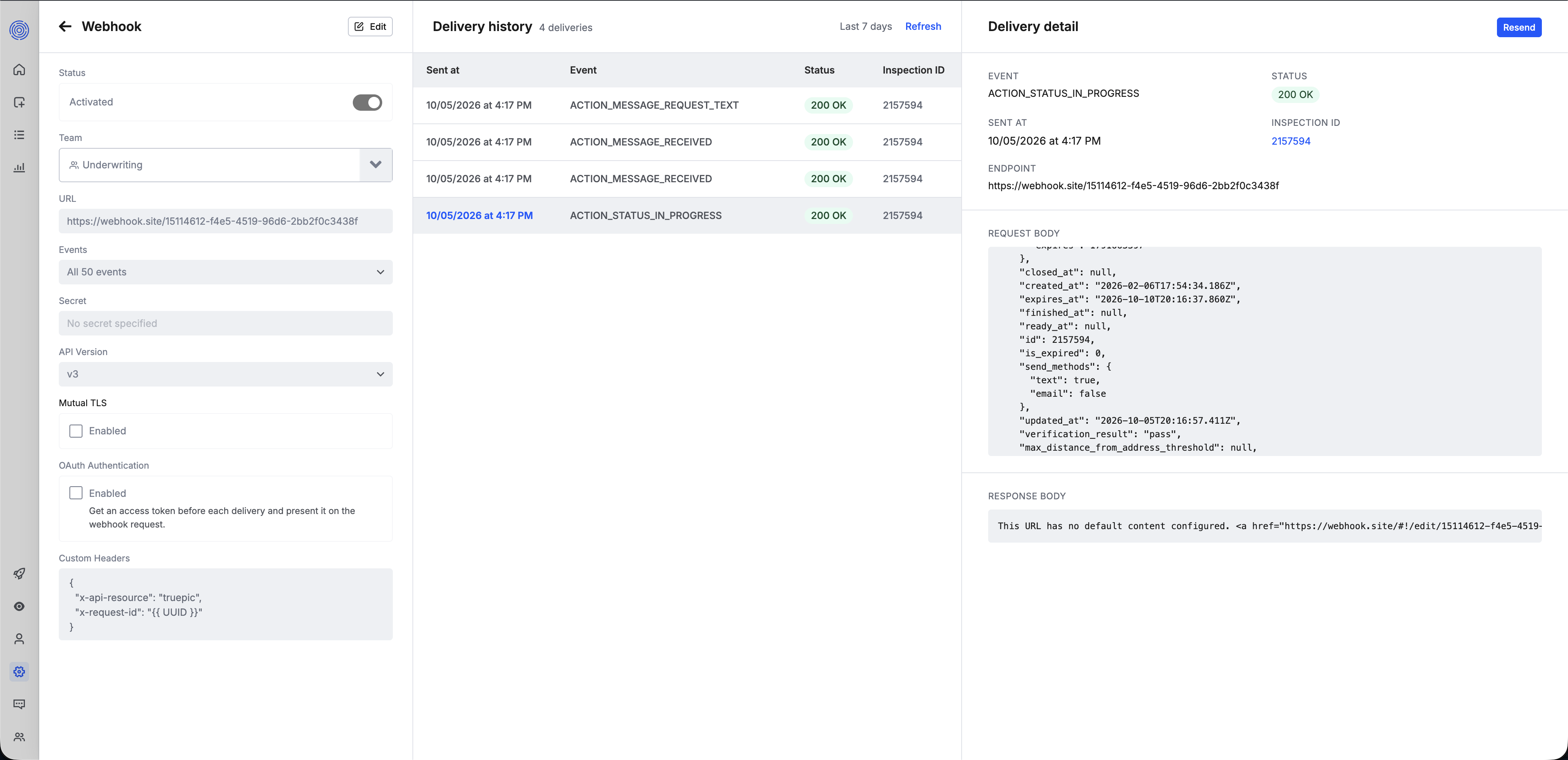
The screenshot shows a selected delivery in Delivery history and its Delivery detail panel. It shows a Last 7 days history view; do not assume older deliveries remain available. The delivery API reports the applicable retention_days value.
2. Inspect a delivery
- Select a row in Delivery history to open Delivery detail.
- Compare Event and Inspection ID with the event and inspection you expected. Check Sent at and Endpoint against your endpoint logs.
- Read Request body to see what Vision sent, then inspect Status and Response body to see how your endpoint replied.
A 200 OK status means the endpoint responded successfully; it does not establish that your application completed any background processing. If the delivery failed, check the endpoint logs for the sent time and inspect its response. If your endpoint did not respond, check whether the configured URL is reachable and whether its authentication settings allow the request through. For signature verification, see Webhook Setup.
3. Resend a specific delivery
- Fix the issue at your endpoint, if you found one. Confirm the webhook is activated and its current URL and authentication settings are correct.
- In Delivery history, select the delivery you want to retry and click Resend in Delivery detail.
- Refresh the history and inspect the new delivery to confirm the response. Check your endpoint logs to confirm that your application handled the event.
A resend queues a new delivery with the original request body. Vision sends it to the webhook's current URL using headers generated from the webhook's current secret and OAuth settings. It is not a replay of the original request headers or original endpoint configuration. Only one resend of a particular delivery can be pending at a time, and a disabled webhook cannot receive a resend. Your handler should deduplicate events using stable payload fields, such as inspection ID and event action, because resending an event can cause it to arrive again.
If you still do not see a successful delivery
- No delivery appears: Confirm you opened the webhook for the correct team, that it is activated, and that its Events selection includes the action you expect. Check whether the delivery falls within the available history window.
- The request did not reach your endpoint: Check the webhook URL, endpoint availability, and any gateway authentication, mutual TLS, or custom-header requirements you configured.
- Your endpoint returned an error: Compare the request and response bodies with your application logs. Fix the handler before resending the delivery.
- A resend does not succeed: Inspect the new delivery rather than the original row. A queued resend is a new attempt, not proof of successful processing.
For programmatic troubleshooting, use GET /webhooks/{webhookId}/deliveries to list attempts, GET /webhooks/{webhookId}/deliveries/{deliveryId} to read request and response bodies, and POST /webhooks/{webhookId}/deliveries/{deliveryId}/resend to queue a resend. The resend endpoint returns the new delivery ID; fetch that delivery to check its outcome. See Webhooks for automatic retry behavior.
Updated about 5 hours ago