

Get Inspection Details
Use the GET /v3/inspections/{inspectionId} endpoint to retrieve the complete details for a single inspection, including status, alerts, AI review fields, photos, question responses, and timeline activity.
Use the GET /v3/inspections/{inspectionId} endpoint to retrieve the complete details for a single inspection. The response includes:
- App user's personal information
- App user generated data: photos, videos, and answers to questions
- Smart link
- Truepic test results
- The timeline of all activities related to the inspection
- Inspection status
- Inspection outcome
- Alerts
- AI review fields, when AI analysis is enabled and has run
To see how this data looks in practice, perform an inspection and view the results in the Vision Dashboard.
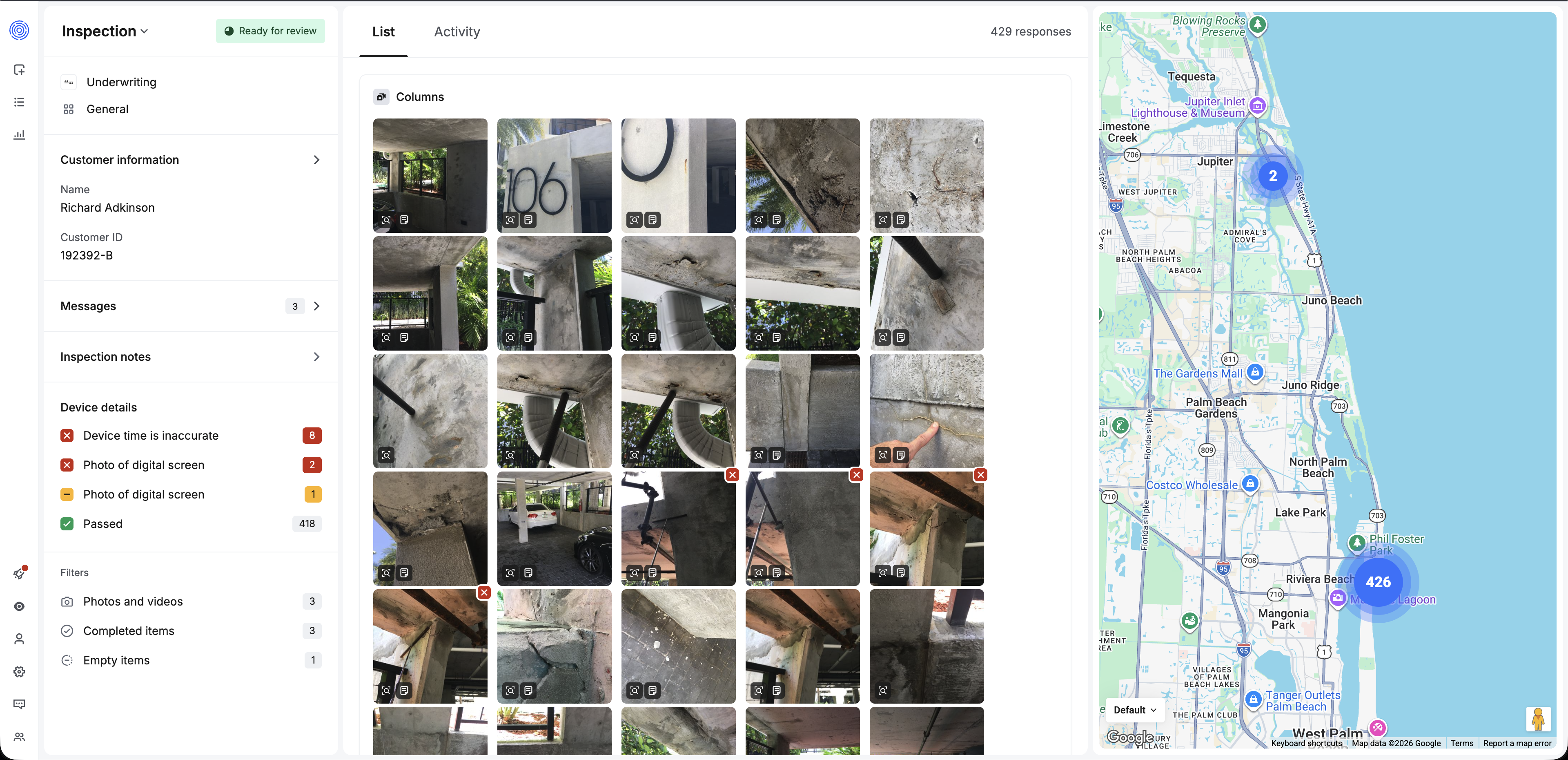
Vision Dashboard. Example of displaying the details of one inspection.
Key Response Fields
When building a workflow on top of the inspection response, the data breaks down into two levels: inspection-level intelligence that summarizes the overall risk picture, and per-photo detail that provides granular test results for each media item.
Inspection-Level Intelligence
These fields give the approver a high-level summary before examining individual photos or videos. For many workflows, these fields are sufficient to route inspections for auto-approval, manual review, or rejection.
Aggregate Verification Result
result.verification_result returns the overall verification outcome across all photos and videos in the inspection.
| Value | Meaning |
|---|---|
pass | All photos/videos passed verification tests |
warn | One or more photos/videos triggered a warning |
fail | One or more photos/videos failed verification tests |
Use this as the initial routing signal — for example, auto-approve pass inspections, queue warn for manual review, and escalate fail.
"verification_result": "warn"Optional: AI Inspection Review
When AI analysis is enabled and has run for an inspection, result.ai_status, result.ai_status_reason, and result.ai_status_details provide an AI-generated assessment of whether the inspection is ready for a human reviewer and what the AI noticed.
Use ai_status as a quick routing signal, ai_status_reason as a stable machine-readable code, and ai_status_details to surface human-readable summaries to the reviewer.
All three AI review fields are absent when AI analysis has not run or is not enabled for the inspection. Check whether the fields exist before reading them.
AI Status
result.ai_status returns the AI's overall recommendation for the inspection. It uses the same pass, warn, and fail vocabulary as result.verification_result.
| Value | Meaning |
|---|---|
pass | AI analysis completed and detected no inconsistencies. Safe to auto-route to standard review. |
warn | AI analysis completed but found inconsistencies that a human should review. |
fail | AI analysis determined the inspection is not yet ready for human review, such as missing or unusable inputs. |
"ai_status": "warn"AI Status Reason
result.ai_status_reason is a stable enum describing why ai_status has its value. Prefer this field over parsing summary text.
| Value | Corresponding ai_status | Meaning |
|---|---|---|
COMPLETE_WITH_NO_INCONSISTENCIES | pass | The AI determined the inspection is ready for human review and found nothing notable. |
COMPLETE_WITH_INCONSISTENCIES | warn | The AI determined the inspection is ready for review but flagged one or more inconsistencies in ai_status_details. |
INCOMPLETE | fail | The AI determined the inspection is not ready for human review. The reviewer should typically request more from the customer. |
AI Status Details
result.ai_status_details provides a structured breakdown of the AI's findings. Both fields are optional: summary may be present without list_items, and list_items may be present without summary.
| Field | Description |
|---|---|
summary | Free-text overall summary of the AI's findings across the inspection. May span multiple paragraphs. References to specific captures are rendered as Capture 1, Capture 2, and so on, in inspection order. |
list_items | Array of per-list-item findings. Only list items that the AI had something to say about are included. Absence from this array means the AI had no specific commentary for that item. |
Each entry in list_items contains:
| Field | Description |
|---|---|
list_item_id | The ID of the list item. Cross-reference with result.list.items to get the prompt text and photos. |
status | The AI's per-list-item verdict: pass, warn, or fail. Uses the same semantics as ai_status. |
status_reason | The AI's per-list-item reason code. Uses the same enum values as ai_status_reason. |
summary | Human-readable summary of what the AI observed for this list item, including any inconsistencies. |
Example AI review fields
{
  "ai_status": "warn",
  "ai_status_reason": "COMPLETE_WITH_INCONSISTENCIES",
  "ai_status_details": {
    "summary": "The inspection is ready for review, but the AI found inconsistencies that should be checked by a reviewer.",
    "list_items": [
      {
        "list_item_id": 37653764,
        "status": "warn",
        "status_reason": "COMPLETE_WITH_INCONSISTENCIES",
        "summary": "The submitted capture may not match the requested prompt. Review the prompt text and associated photo before approving."
      }
    ]
  }
}
Use these fields in your reviewer workflow as follows:
- Route inspections with
ai_statusandai_status_reason. Inspections withai_status_reason: "INCOMPLETE"generally are not ready for human approval; consider sending a request for more information instead of closing the inspection. - Show
ai_status_details.summaryat the top of your reviewer UI for quick orientation. - For each list item the reviewer opens, look up the matching entry in
ai_status_details.list_itemsbylist_item_idand display itssummaryalongside the prompt and captures.
Inspection Status
result.status indicates where the inspection is in its lifecycle. Only present an inspection to an approver when it has reached the appropriate status.
"status": {
  "id": 2,
  "id_internal": "STATUS_READY_FOR_REVIEW",
  "name": "Ready for Review"
}| Status ID | Name | Internal ID | Description |
|---|---|---|---|
| 7 | Scheduled | STATUS_INSPECTION_SCHEDULED | Scheduled for future delivery |
| 1 | Created | STATUS_WAITING_ON_PHOTOS | Inspection created, not yet started by the customer |
| 3 | Started | STATUS_INSPECTION_STARTED | App opened by the customer |
| 4 | In Progress | STATUS_INSPECTION_IN_PROGRESS | Customer has started but not finished |
| 8 | Processing | STATUS_PROCESSING | Inspection is being processed |
| 2 | Ready for Review | STATUS_READY_FOR_REVIEW | Customer submitted — ready for approver review |
| 5 | Closed | STATUS_INSPECTION_CLOSED | Inspection has been closed with an outcome |
| 6 | Canceled | STATUS_CANCELED | Inspection was canceled |
For more details about inspection statuses please see our page dedicated to Inspection Statuses.
Alert Summary
result.alert provides the alert system's assessment of the inspection based on your configured alert thresholds. This is the most actionable inspection-level field for approver routing — it tells you what went wrong and where.
Example alert object
{
  "config": {
    "fail_threshold": 1,
    "warn_threshold": 1,
    "test_blurriness": true,
    "test_content_analysis_vin": true,
    "test_content_analysis_odometer": true,
    "test_content_analysis_text_matching": true,
    "test_content_analysis_dot_tin": true,
    "test_capture_integrity": true,
    "test_datetime": true,
    "test_device_integrity": true,
    "test_distance_from_address": true,
    "test_geolocation": true,
    "test_object_detection": true,
    "test_pop": true,
    "test_falsified_location": true,
    "test_insecure_device": true,
    "test_device_flagged": true,
    "test_device_found_other_inspections": true
  },
  "warnings": [
    {
      "photo_id": 42469794,
      "test_key": "test_content_analysis_text_matching"
    }
  ],
  "failures": [],
  "recommendation": "warn"
}| Field | Description |
|---|---|
recommendation | pass, warn, or fail — the alert system's overall recommendation based on your threshold configuration |
warnings | Array of { photo_id, test_key } objects identifying which photos triggered warnings and which specific tests caused them |
failures | Array of { photo_id, test_key } objects identifying which photos failed and which specific tests caused the failures |
config | The alert configuration showing which tests are enabled and the warn/fail thresholds |
The recommendation is calculated by comparing the count of warnings and failures against the configured warn_threshold and fail_threshold. Use the warnings and failures arrays to link specific issues back to individual photos by photo_id.
Device Insights
result.insights flags risk signals detected across the inspection. These are high-level indicators that may warrant closer review.
"insights": [
  { "type": "device_found_other_inspections" }
]| Type | Meaning |
|---|---|
insecure_device | The device shows signs of being rooted or jailbroken |
falsified_location | GPS location appears to be spoofed |
device_found_other_inspections | The same device was used in other inspections within your organization |
device_flagged_other_inspections | The device has been flagged in other inspections |
Device Details
result.devices provides information about each device used during the inspection, including cross-inspection and cross-organization flag history.
Example device object
{
  "id": 13193976,
  "fingerprint_id": "dpHht8M90xOiyoc9SsRW",
  "os": "iOS",
  "os_version": "18.7",
  "device": "iPhone",
  "flags": [],
  "flags_other_inspections": {
    "inspections": [],
    "flag_counts": {}
  },
  "flags_other_orgs": {
    "first_flagged_dates": [],
    "flag_counts": {},
    "org_count": 0
  },
  "other_inspections": [
    { "id": 2187527, "team_id": 20525, "assigned_to_member_user_id": 2149492 }
  ]
}| Field | Description |
|---|---|
flags | Flags applied to this device for this inspection (e.g., rooted_device, spoofed_location, picture_of_photo) |
flags_other_inspections | Flags on this device from other inspections in your organization, with per-flag counts and linked inspection IDs |
flags_other_orgs | Flags on this device from other organizations, with per-flag counts and the number of organizations affected |
other_inspections | List of other inspection IDs where this device was used |
A device with flags from other inspections or organizations is a strong risk signal that warrants closer manual review.
Per-Photo Detail
Each object in result.photos contains the full set of test results, location data, and media URLs for a single captured photo or video. This is where an approver gets the detail needed to evaluate each media item individually.
Photo Status and Identity
| Field | Description |
|---|---|
id | Unique photo/video ID |
verification_code | Unique alphanumeric identifier for the photo/video |
type | image or video |
status | Overall verification status for this photo: pass, warn, or fail |
is_verified | Whether the photo has completed verification |
is_existing_image | true if the photo was uploaded from the device's library rather than captured live — a potential risk signal |
is_deleted | Whether the photo has been deleted |
override | Whether the status has been manually overridden (0 = no override) |
Verification Test Results
Each photo includes a set of *_result and *_reason field pairs. The _result field contains pass, warn, fail, or null (test not run). When the result is not pass, the _reason field provides a human-readable explanation.
For a category-by-category explanation of these checks and what pass, warn, and fail mean, see Verification Tests.
| Test | Result Field | Reason Field | What It Checks |
|---|---|---|---|
| Picture-of-photo | pop_result | pop_reason | Detects if the image is a photo of another screen or printed photo |
| Timestamp | time_result | time_reason | Validates the capture timestamp is consistent and recent |
| Geolocation | geolocation_result | geolocation_reason | Validates GPS coordinates are present and trustworthy |
| Device integrity | jailbreak_result | jailbreak_reason | Checks whether the device is rooted or jailbroken |
| Data integrity | data_result | data_reason | Verifies the photo data has not been tampered with |
| Capture integrity | capture_integrity_result | capture_integrity_reason | Validates the photo was captured through a trusted pipeline |
| Content analysis | content_analysis_result | content_analysis_reason | OCR, VIN, odometer, DOT TIN, or text matching analysis |
| Object detection | object_detection_result | object_detection_reason | Checks for expected objects in the photo |
A photo with status: "warn" will have at least one test with a warn result. Scan the _result fields to find which test triggered it, and display the corresponding _reason to your approver.
Example: photo with a content analysis warning
In this example, the photo's overall status is warn because the text matching content analysis did not find the expected brand text:
{
  "id": "42469794",
  "status": "warn",
  "pop_result": "pass",
  "time_result": "pass",
  "geolocation_result": "pass",
  "jailbreak_result": "pass",
  "data_result": "pass",
  "capture_integrity_result": "pass",
  "content_analysis_result": "warn",
  "content_analysis_reason": "The text detected does not match any of the expected values.",
  "object_detection_result": null
}
All security tests passed — the warning is isolated to content analysis, which may indicate the customer photographed the wrong item rather than attempting fraud.
Content Analysis Details
When content_analysis_result is not null, the content_analysis_details object provides a full breakdown of what was expected and what was detected.
{
  "type": "TEXT_MATCHING",
  "result": [[]],
  "expected": [
    {
      "text_matching_set_id": 1002,
      "text_matching_set": {
        "id": 1002,
        "name": "Test",
        "type": "Example",
        "strings": ["Example"]
      }
    }
  ]
}| Field | Description |
|---|---|
type | The content analysis type: VIN, ODOMETER, TEXT_MATCHING, CUSTOM_FIELD_MATCHING, or DOT_TIN |
result | The detected value(s). For TEXT_MATCHING, a 2D array of matched strings per text matching set. An empty inner array (as above) means no matches were found. |
expected | The expected value(s) or text matching sets configured for comparison |
Two additional fields on the photo provide the raw detection data:
| Field | Description | Example |
|---|---|---|
ocr_string | Raw OCR text detected in the image | "Systan | Systan" |
content | Detected content labels | "Bottle | Solution" |
Location and Distance
| Field | Description |
|---|---|
lat / lng | GPS coordinates where the photo was captured |
formatted_address | Reverse-geocoded address of the capture location |
city / state | City and state components of the address |
gps_accuracy | GPS accuracy in meters — lower values indicate more precise readings |
distance_from_customer_address | Distance in meters between the capture location and the inspection's configured address |
distance_from_customer_address_exceeds_threshold | true if the photo was taken beyond the configured maximum distance threshold |
Media URLs
Each photo provides multiple URLs at different resolutions. Choose the appropriate one for your approver UI:
| Field | Resolution | Use Case |
|---|---|---|
original_image | Full resolution | Detailed review and zoom |
image | Scaled down | Standard display |
web_image | 1000×1000px max | Browser-based approver UIs |
square_image | 320×320px | Grid views and thumbnail previews |
All image URLs include a signed token that grants access for a limited time. If tokens have expired, fetch fresh URLs by re-requesting the inspection.
Device and Capture Metadata
| Field | Description |
|---|---|
make | Device manufacturer (e.g., Apple) |
model | Device model (e.g., iPhone) |
device_time | Device's date/time when the photo was captured (ISO 8601) |
device_id | Internal device record ID — cross-reference with result.devices for flags and history |
device_fingerprint_id | Fingerprint service ID — cross-reference with result.devices |
heading | Compass direction the device was facing at capture (degrees from magnetic north), or null |
Reading Question Responses
result.list.items contains every prompt in the inspection list, including question prompts and media prompts. To read responses to questions, find items where type is QUESTION and inspect the question.answer field on each item.
| Field | Description |
|---|---|
type | QUESTION indicates the list item is a question |
name | The question text shown to the customer |
question.type | The answer format, such as MULTIPLE_CHOICE or TEXT |
question.answer | The submitted answer, or null if the question has not been answered |
order | The position of the question in the inspection flow |
Use question.type to determine how to read question.answer:
- For
MULTIPLE_CHOICE,question.answeris an array of selected choice objects. - For
TEXT,question.answeris a string. - If
question.answerisnull, the customer has not submitted an answer for that question yet.
{
  "type": "MULTIPLE_CHOICE",
  "answer": [
    {
      "name": "Yes"
    }
  ]
}{
"type": "TEXT",
"answer": "0825607"
}{
"type": "MULTIPLE_CHOICE",
"answer": null
}Example: reading question responses from result.list.items
This inspection response stores question answers directly on each question item in result.list.items:
[
  {
    "id": 41500348,
    "name": "Do you understand the witnessing requirements and have you been trained in the usage of TruePic? ",
    "type": "QUESTION",
    "question": {
      "type": "MULTIPLE_CHOICE",
      "answer": [
        {
          "name": "Yes"
        }
      ]
    }
  },
  {
    "id": 41500350,
    "name": "Container inbound tag ID or Seal #",
    "type": "QUESTION",
    "question": {
      "type": "TEXT",
      "answer": "0825607"
    }
  },
  {
    "id": 41500366,
    "name": "I remained on location until all destruct material was rendered unusable?",
    "type": "QUESTION",
    "question": {
      "type": "MULTIPLE_CHOICE",
      "answer": null
    }
  }
]
In this example, the first question was answered with Yes, the second question was answered with the text 0825607, and the third question has not been answered yet.
If you need the current question-and-answer pairs for an inspection, result.list.items is the primary structure to read. Use result.timeline when you also need the audit trail of when a question was answered: timeline entries with action_type.id_internal: "ACTION_QUESTION_ANSWERED" include the related data.list_item_id, which you can match back to the corresponding item in result.list.items.
Linking Photos to List Items
Each photo can be connected back to the list item (the prompt) that the customer was responding to. This lets your approver see what was requested alongside what was submitted.
| Photo Field | Description |
|---|---|
list_item_id | The ID of the list item this photo was captured for |
list_item | When present, the full list item object including name, type, group_id, and any content_analysis or object_detection configuration |
Cross-reference a photo's list_item_id with result.list.items to get the list item details when list_item is not embedded on the photo object. Use result.list.groups to resolve a list item's group_id to a human-readable group name.
Example: connecting a photo to its list item
A photo has list_item_id: 37653764. Find the matching list item in result.list.items:
{
  "id": 37653764,
  "name": "Photo of Logo",
  "type": "IMAGE",
  "group_id": "group_l8slhpdi9m",
  "is_required": false
}
Resolve the group name from result.list.groups:
{
  "group_l8slhpdi9m": {
    "name": "Photo of Logo"
  }
}
Display to the approver: this photo was submitted for the "Photo of Logo" prompt in the "Photo of Logo" group.
Next Steps
Once the data has been retrieved, you may perform subsequent actions for the inspection. Some examples include:
- Workflow Automation. Escalating certain inspections by closing some inspections, while pushing other inspections into different queues for further assessment.
- Data Storage. Downloading and storing the data on your own servers.
- Performing follow-up actions, further described in the next section.
To see the full list of query params, try it out in the API Reference via Inspections > Get an existing inspection request.
Updated about 1 month ago